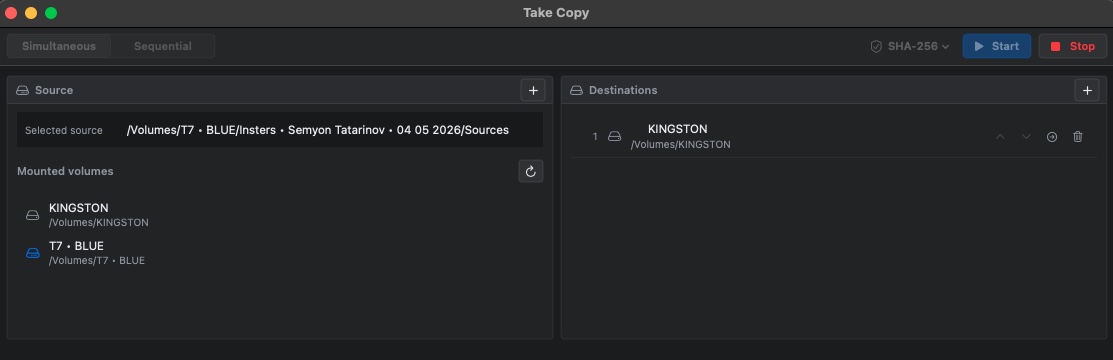
Select
Choose a mounted volume, folder, or file set. Drag and drop is ready when speed matters.

Professional media offload for macOS
Take Copy moves camera media to multiple destinations, reads every written file back, and delivers a production-ready PDF verification report.
Built for DITs, data wranglers, and crews who do not get a second take.
Not just another copy window
A finished progress bar only proves that a write operation ended. Take Copy goes further: it plans the transfer, checks available space, copies the media, validates the destination data, and records the result.
Why verified copy matters
Ordinary copying is useful for ordinary files. Production media needs a repeatable chain of custody, destination-by-destination confirmation, and something concrete to give post-production.
A calm, visible workflow
Drop in a card or folder, add as many destinations as the job requires, choose the validation profile, and start. The interface stays focused on what is happening now.
Choose a mounted volume, folder, or file set. Drag and drop is ready when speed matters.
Run all destinations together, or prioritize them one by one in sequential mode.
Destination files are read back and compared with the selected validation protocol.
A polished PDF records the computer, time, paths, mode, data volume, files, and hashes.
Two transfer modes
Simultaneous mode writes to every destination during the same transfer. Sequential mode completes and verifies the first destination before moving to the next, so an urgent shuttle can leave sooner.
Pause safely when the set needs your attention. Resume continues the job, while completed file validation remains intact.
Validation protocols
Choose fast operational checks, modern cryptographic hashes, or compatibility formats requested by a post house. Protocol names remain in English in every app localization.
Modern tree-hash design with strong integrity protection and excellent scaling on current hardware.
MediumA modern cryptographic hash optimized for 64-bit systems, with a wide 512-bit digest.
MediumNIST-standard Keccak hashing with a design independent from the SHA-2 family.
SlowThe 512-bit SHA-3 variant for workflows that prioritize a larger cryptographic digest.
SlowProduces two widely understood SHA-2 digests for high-assurance handoffs and records.
MediumA strong 512-bit SHA-2 checksum, often efficient on modern 64-bit processors.
FastA SHA-2 family option with a 384-bit digest for established technical requirements.
FastAn extremely fast non-cryptographic checksum for operational error detection.
FastStill cryptographically strong and universally recognized; retained for established workflows.
FastBroadly compatible with older media workflows, but not collision-resistant.
FastA lightweight error-detection code for compatibility, not a cryptographic proof.
FastProtocol speed depends on the Mac, source, destination, file sizes, and number of concurrent drives. A stronger-looking name does not automatically mean a better fit for every transfer.
Professional PDF reports
The report is placed beside the newly created media folder, ready for post-production import without mixing paperwork into the camera originals.
TRANSFER
Built for the real cart
Take Copy keeps the interface restrained while exposing the controls a working DIT actually needs.
Add folders and mounted volumes by button or drag and drop. Reorder destinations to control sequential priority.
Pause between controlled chunks, continue the same job, or confirm a full stop. Completed files stay completed.
Watch files appear as copying and validation finish, with concise names, sizes, statuses, and digests.
Sequential jobs mark each destination complete and generate its report as soon as that destination is ready.
Localized controls and reports for international crews, while file names, paths, and protocols remain exact.
A professional macOS utility without a recurring subscription. App Store purchase validation supports offline work.
FAQ
Clear answers for the questions that matter when the card is still on your desk.
Yes. Take Copy reads the written destination file back and calculates the selected checksum. A completed write alone is not treated as successful verification.
Simultaneous mode works on all destinations during the same transfer. Sequential mode completes and verifies destination one before starting destination two, which is useful when the first shuttle must leave quickly.
Yes. Pause is handled at controlled I/O boundaries. Finished files remain validated, and an unfinished file is not reported as complete. When resumed, the transfer continues under the same verification rules.
xxHash64 is excellent for fast operational error detection. SHA-512 and SHA-384 are strong, widely understood options. BLAKE3, BLAKE2b, and SHA-3 suit modern cryptographic workflows. MD5 and CRC32 are included for legacy compatibility.
Hash design matters, but so do file size, storage speed, CPU implementation, thermal conditions, and the number of drives working at once. On many real transfers, the destination device is the main limit.
Each report is written one level above the newly created media folder, beside it rather than inside it. That keeps the copied folder clean for immediate import into an editing system.
No. Media processing and verification happen locally on your Mac. Take Copy does not upload camera files or collect transfer contents.
Yes. Normal transfer work is local. App Store purchase validation can use a previously verified offline entitlement for a limited grace period, so a temporary lack of connectivity does not stop the cart.
The affected destination is not marked complete. The result stays visible so the operator can replace the drive or rerun the transfer instead of assuming the copy is safe.
Available for macOS
Take Copy is distributed through the Mac App Store as a one-time purchase.
Support
Questions, compatibility notes, or a transfer case worth investigating? Send the details and we will help.
info.promobilemedia@icloud.com Pro Mobile Media · Developer of Take Copy